Supported Plugins
The following plugins are currently supported:- FancyHolograms
- Requires version 2.9.1 or newer.
- DecentHolograms
- Requires version 2.9.9 or newer.
How to Translate Holograms
Translating holograms with MultiPlanet is simple. Once you have installed the required plugins and created at least one hologram, you can enable translation individually for each hologram. For example, let’s assume you have created the following hologram: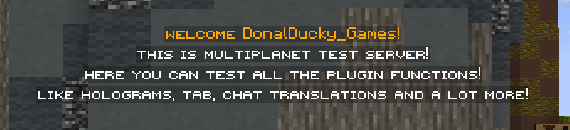
This command works with both FancyHolograms and DecentHolograms. Replace
<hologram_name> with the actual name of your hologram.How to Restore the Original Hologram
If you no longer want a hologram to be translated, you can restore its original content at any time. Simply execute:Restoring a hologram disables the translation previously applied to it. It does not affect the player’s selected language or other holograms.
Commands Overview
Permissions
Need help?